

Slack
Connect Slack to send notifications to your team and let the agent reply in channels
With Slack connected, the agent works in two directions: it sends messages and notifications to your team on Slack (when a lead comes in, to alert you, for a reminder) and — if you enable it — replies when you mention @Leader24 in a channel.
Before you start
- A Slack workspace where you can install apps
- An agent already created (create your agent)
How to connect Slack
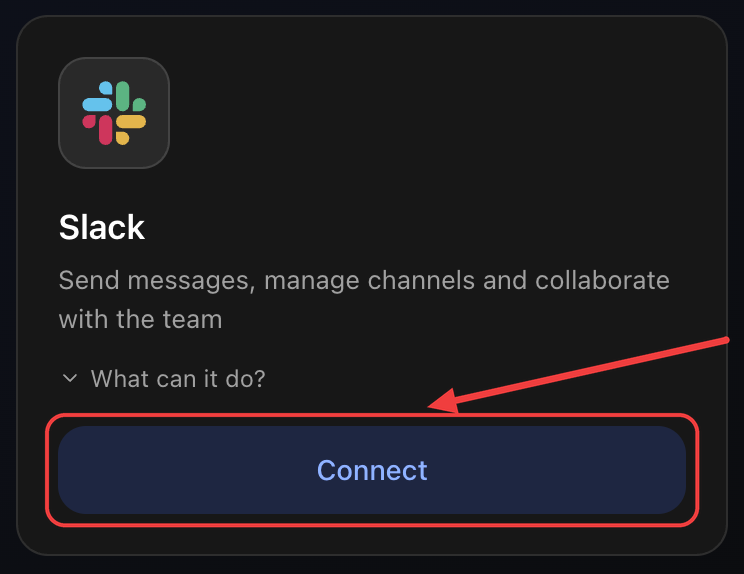
1. Open the Integrations tab and click Connect
Go to Agents → your agent → Settings → Integrations tab. On the Slack card click Connect.
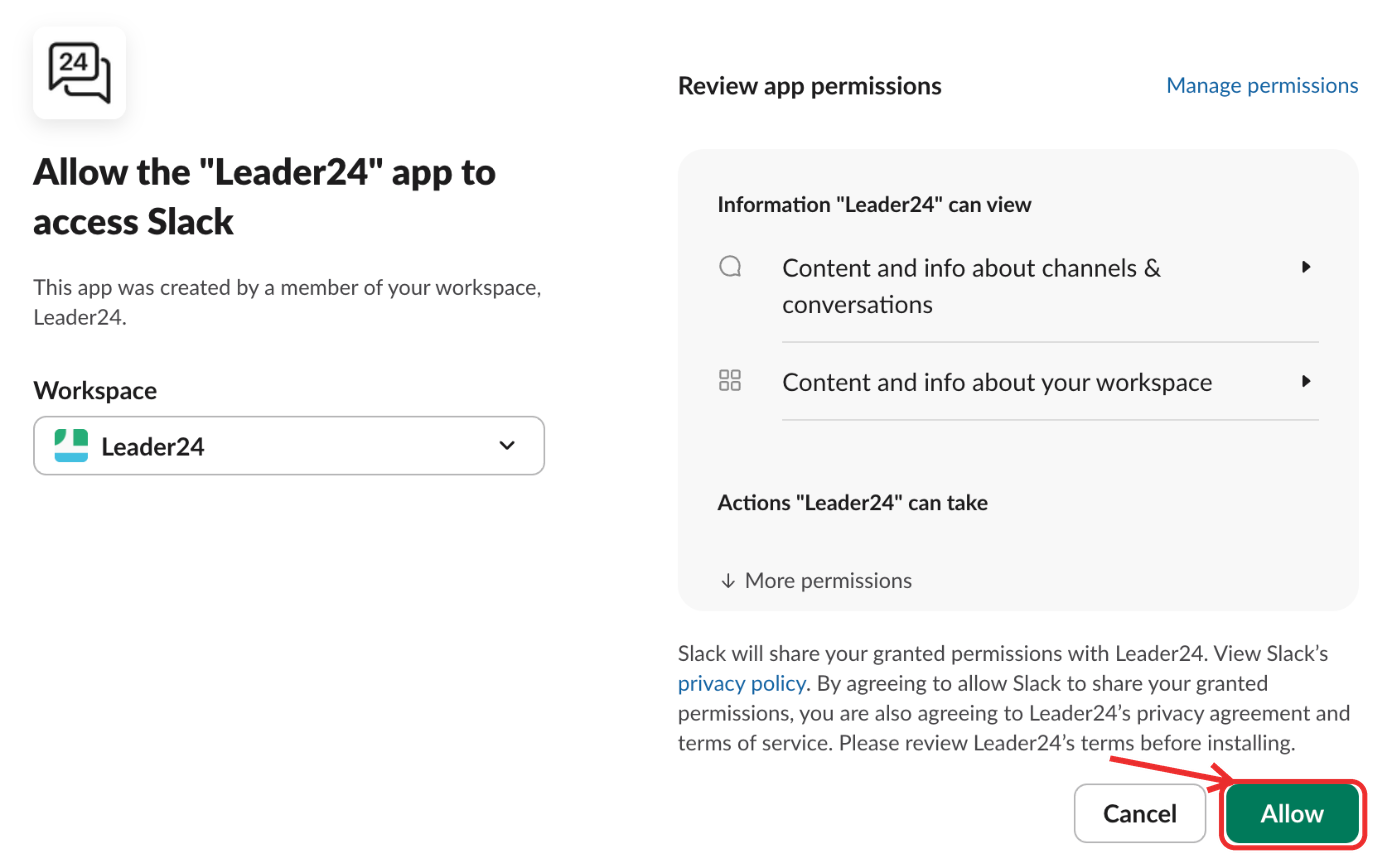
2. Authorize Leader24
A Slack popup opens. Choose your workspace from the Workspace menu, review the permissions the agent will have, and click Allow. If you're not already signed in to Slack in your browser, Slack first asks you to sign in to your workspace.
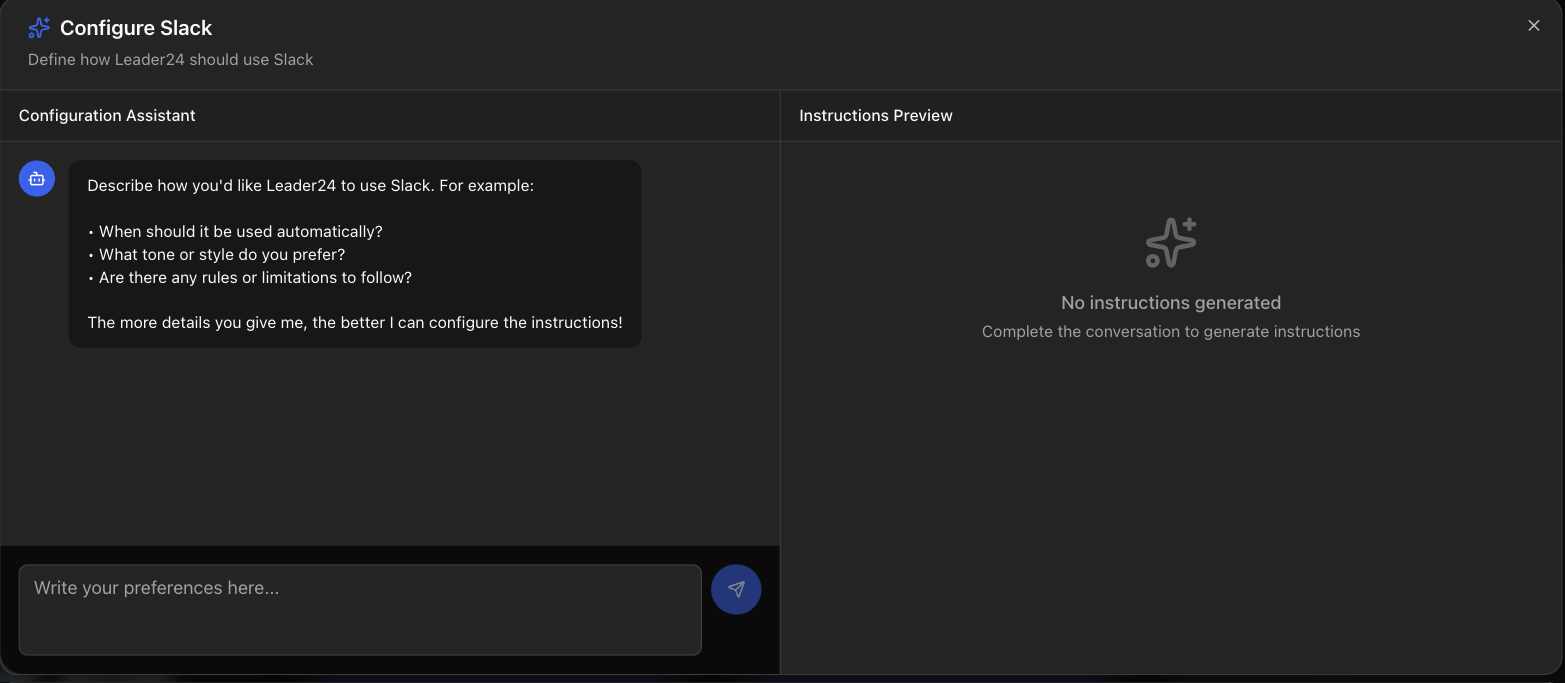
3. Configure the instructions
You return to the dashboard and the Configure Slack window opens: an assistant helps you define when and in which channel to write. Describe your preferences and save.
Done: the card shows Configured.
What the agent can do
To Slack
- Send a message to a channel or a DM
- Notify you (whoever installed the app) with a direct message
- Schedule a message for later
- Edit or delete the messages it has sent
- Find a channel by searching its name
- Read a channel's recent messages or a thread's replies
- Find a person by their email and open a private conversation with them
From Slack
- Reply when you mention it: write
@Leader24 ...in a channel and the agent replies in the thread
To let the agent reply in a channel
Invite the agent to the channel (in Slack: /invite @Leader24). In public channels the agent can write even without an invite, but to reply to mentions it must be in the channel.
Tips
In the instructions (step 3) explain when and where to write (e.g. "when a new lead comes in, alert me in the #sales channel"). Refer to the channel by name: the agent finds it on its own.