

Gmail
Connect Gmail to let your agent send emails from your templates
With Gmail connected, the agent sends emails from your address — appointment confirmations, follow-ups, reminders — using your email templates: it picks the right one for the situation and fills the fields (customer name, date, summary…) with data from the conversation. It doesn't write emails freely: the text is your templates', the agent only fills the blanks.
Before you start
- A Gmail account
- An agent already created (create your agent)
Requires the Business plan
Gmail is a higher-plan integration. If your plan doesn't include it, the card will show Upgrade plan instead of Connect.
How to connect Gmail
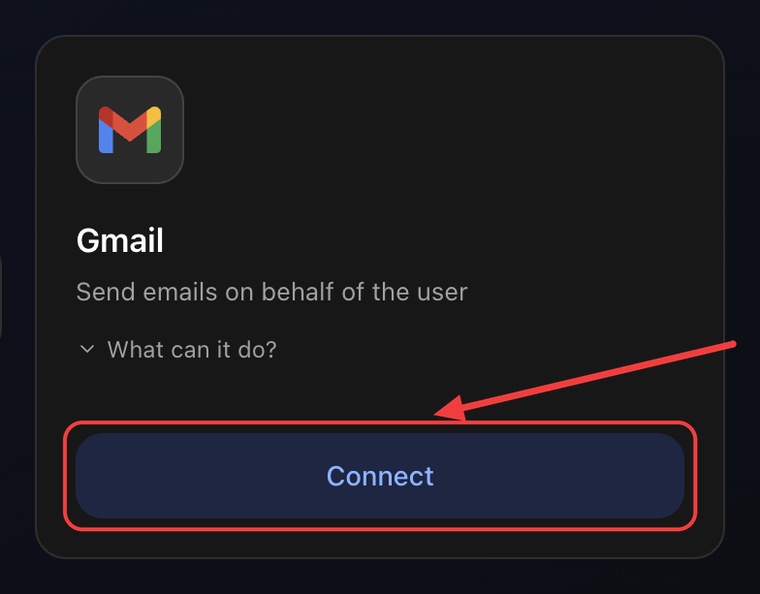
1. Open the Integrations tab and click Connect
Go to Agents → your agent → Settings → Integrations tab. On the Gmail card click Connect.
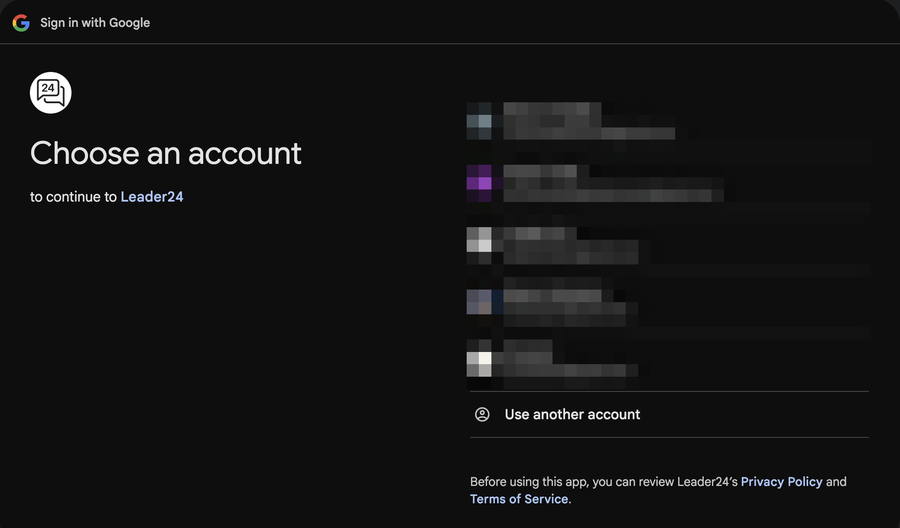
2. Choose your Google account
In the popup, select the Google account the agent will send emails from.
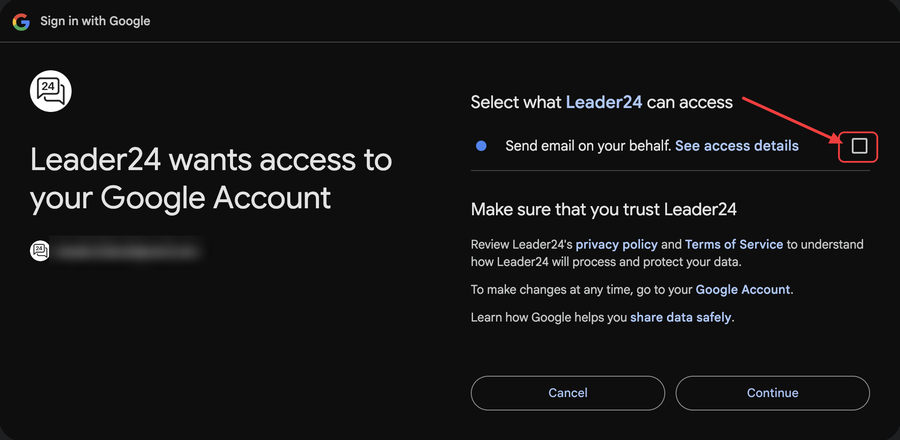
3. Authorize Leader24
Google asks for a single permission: Send email on your behalf. Leader24 does not read your inbox and doesn't manage it — it can only send. Tick the permission box, then click Continue.
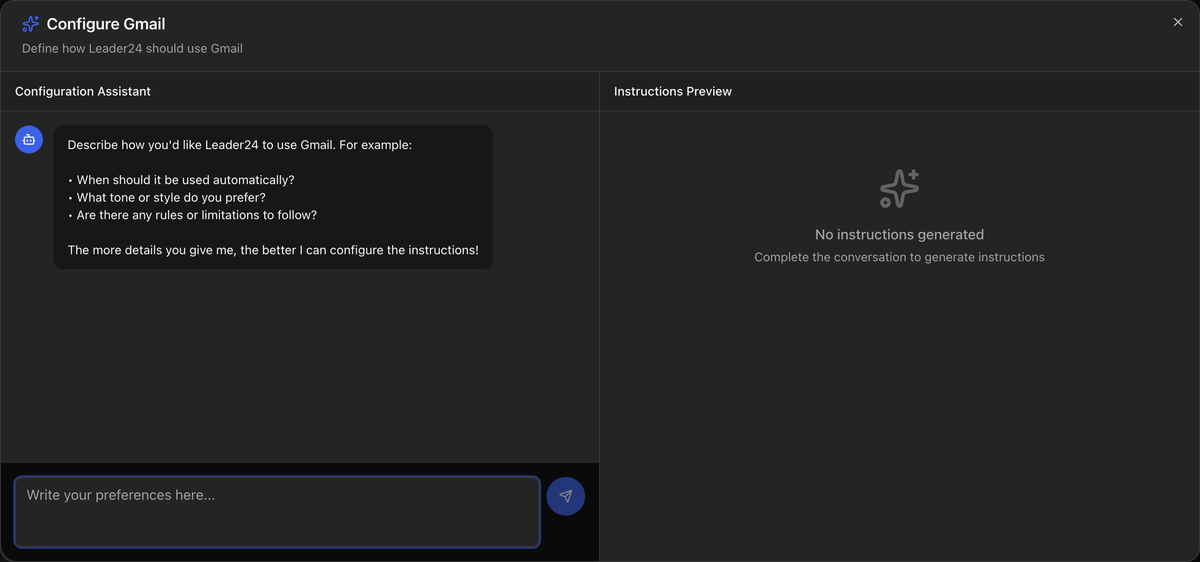
4. Configure the instructions
You return to the dashboard and the Configure Gmail window opens: an assistant helps you define when the agent should send an email and with what tone. Describe your preferences and save.
Done: the card shows Configured.
Email templates
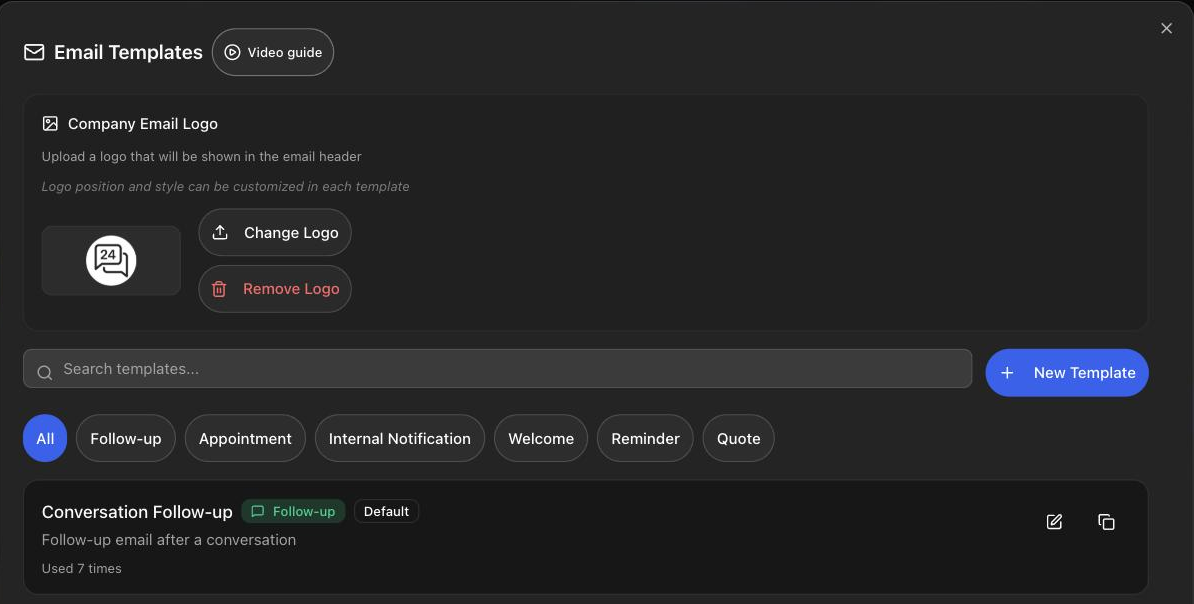
The agent sends emails only using templates. Leader24 already includes ready-made ones — appointment confirmation, modification, cancellation, follow-up, reminder — and you can edit them or create your own. When Gmail is connected, the Email Templates button appears on the card.
Each template has:
- a category (Appointment, Follow-up, Reminder, Quote, Welcome, Thank you, Internal notification, Custom)
- a subject and a body
- variables — the blanks the agent fills with data from the conversation (e.g. customer name, appointment date)
You can also upload your logo and choose its position, background and dark-mode rendering.
What the agent can do
- Send an email to the customer by picking the right template and filling its variables with data from the conversation
- Adapt subject and body when needed (for example, reply in the customer's language)
- Notify you by email when an appointment is booked, modified or cancelled — if you've also connected Google Calendar
- Never sends the same email twice (duplicate protection)
Tips
In the instructions (step 4) explain when to send an email and which template to use (e.g. "after booking an appointment, send the confirmation"). And take care of the templates: they decide the text that goes out, the agent only fills the blanks.