

Mailchimp
Connect Mailchimp to let your agent manage newsletter subscriptions
With Mailchimp connected, the agent helps customers subscribe to your newsletter and manage their own subscription — subscribe to a list, check whether they're already subscribed, update their details, add interests or unsubscribe — right in the chat. Every action is about the customer themselves: the agent asks for their email in the chat and only acts on their own profile, never someone else's.
Before you start
- A Mailchimp account with at least one list (audience)
- An agent already created (create your agent)
How to connect Mailchimp
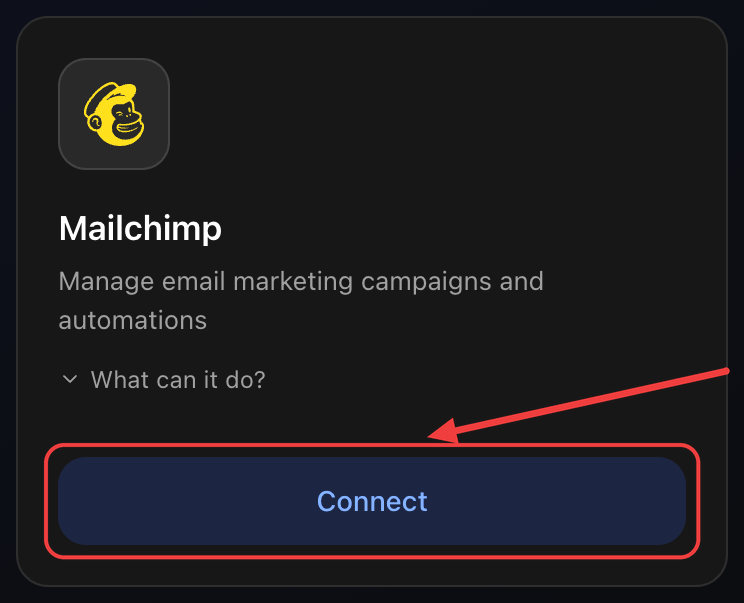
1. Open the Integrations tab and click Connect
Go to Agents → your agent → Settings → Integrations tab. On the Mailchimp card click Connect.
2. Sign in to your Mailchimp account
In the popup, sign in to your Mailchimp account with your username and password.
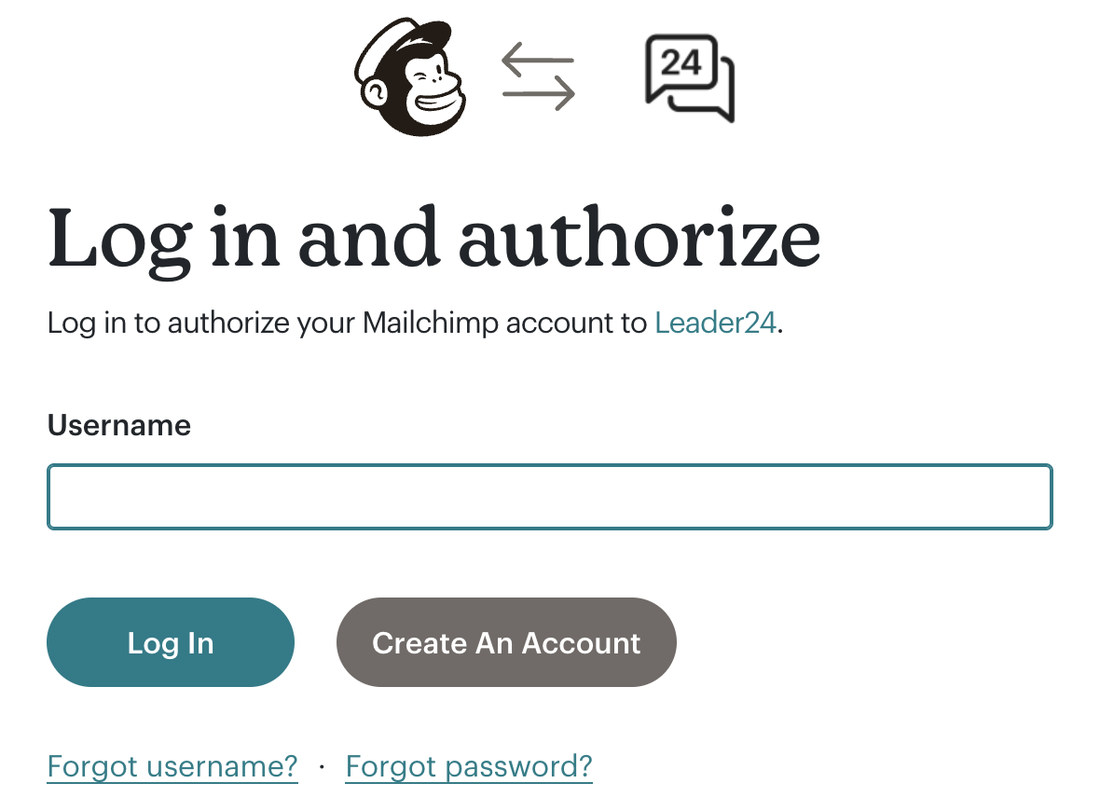
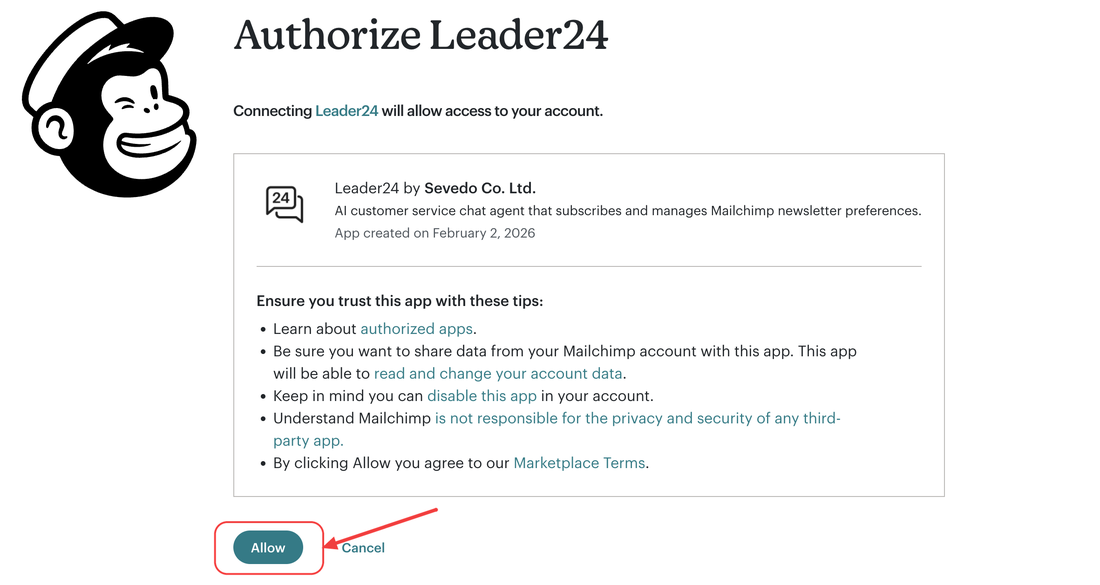
3. Authorize Leader24
Mailchimp asks you to authorize Leader24 to access your account. Click Allow to authorize.
4. Configure the instructions
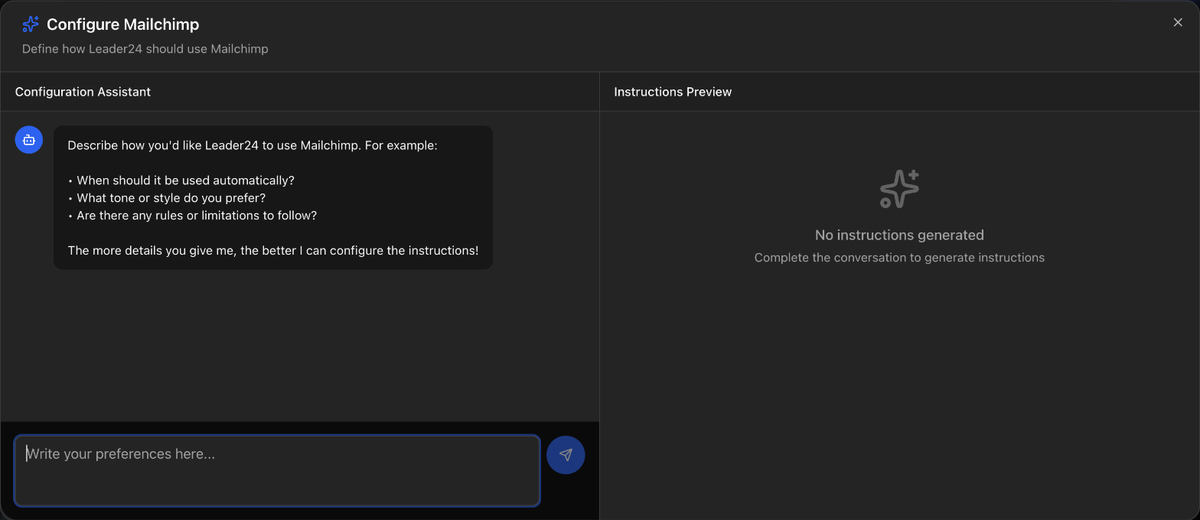
You return to the dashboard and the Configure Mailchimp window opens: an assistant helps you define which list to subscribe customers to and when to offer it. Describe your preferences and save.
Done: the card shows Configured.
What the agent can do
- Subscribe a customer to one of your lists, with name and language
- Add interest tags to their profile, to segment them
- Check whether a customer is already subscribed to a list
- Find which lists they're subscribed to
- Update their details (name, language)
- Unsubscribe them from a list on request
Double opt-in
If your Mailchimp list uses double opt-in, the customer receives a confirmation email to complete the subscription — Mailchimp sends it.
Tips
In the instructions (step 4) specify which list to subscribe to and when to offer it (e.g. "when a customer asks about news or discounts, offer the newsletter subscription"). The agent only subscribes customers who give their email in the chat.
Disconnecting doesn't revoke access on Mailchimp
Clicking Disconnect removes the integration from Leader24, but Mailchimp doesn't revoke access on its own. To remove it fully, remove the app from your Mailchimp account too (Account → Extras → Registered apps).